Getting Started with Embeds
See examples of how Calendly can let customers schedule directly from your site.
Using the developer embed code
By making a JavaScript call, you can create an inline embed on demand. This allows you to delay the appearance of the embed until specific actions are completed, or until information is collected for pre-filling the booking form.
Create a div on your site with a specific ID, and include the Calendly JavaScript file:
Then initialize the embed, replacing the sample text with your div ID and scheduling link:
To load the inline embed automatically while still pre-filling questions or setting UTM parameters:
Embed Options
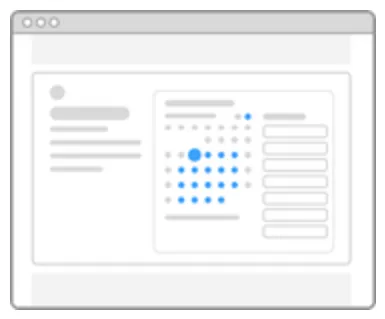
Inline
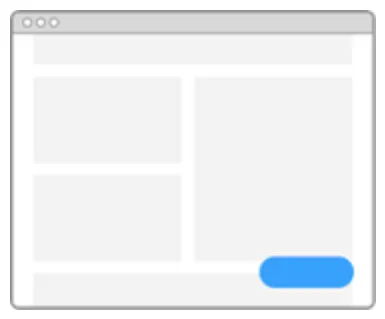
Popup Widget
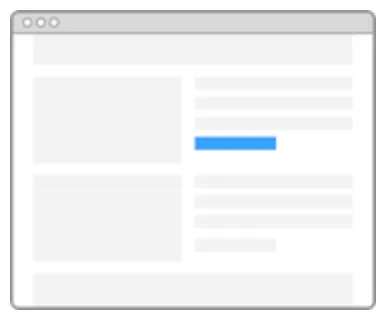
Popup Text
Add your scheduling page to your website
To embed a scheduling page, visit the Event Types tab on your Home page. Locate the page you would like to embed, click the gear icon, select Add to Website, then choose your embed type and adjust the appearance.
Add an event type page to your website
Control the type of meeting your site visitors schedule by embedding a specific event type page. From the Event Types tab on your Home page, locate your preferred event type, select Add to Website from the gear icon menu, and customize it to suit your web page.